
Mastering .ssh/config
10 SSH Config Tricks I Use Every Day
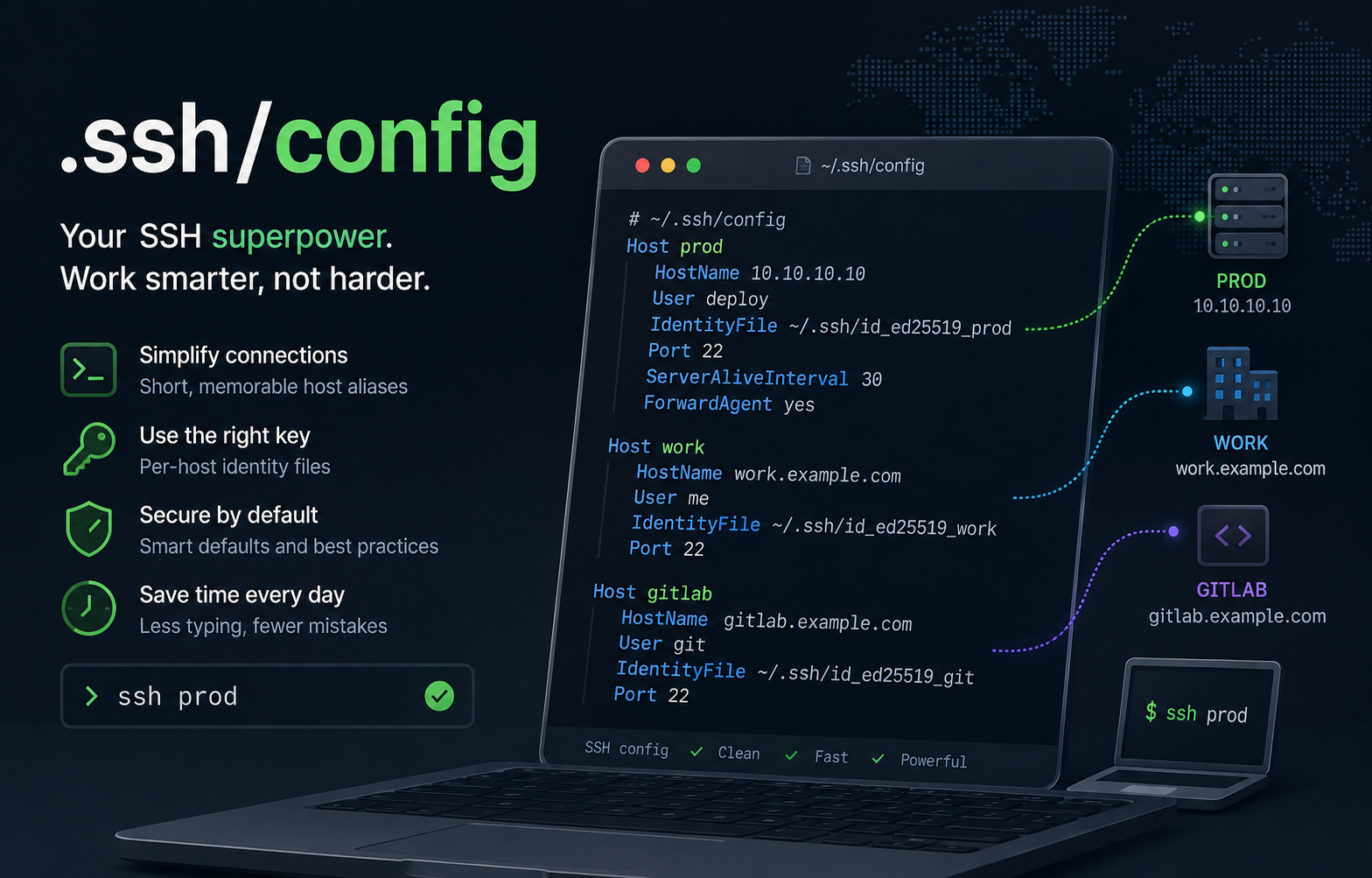
The ~/.ssh/config file configures SSH settings for connecting to remote servers. It can be a powerful tool for customizing your SSH experience, allowing you to define shortcuts, set default options, and configure settings for individual hosts or all hosts.
Here is a tutorial on some of the most common options used in the ~/.ssh/config file.
Host
The Host option defines one or more names or patterns that should match a host configuration. These are the names you use when running the ssh command. You can use custom aliases, fully qualified domain names, IP addresses, or wildcard patterns.
For example:
Host production
    HostName prod.example.com
You can then connect using:
ssh production
You can also use wildcard patterns:
Host *.example.com
    User myusername
Or configure settings that apply to all hosts:
Host *
    ServerAliveInterval 60
HostName
The HostName option specifies the actual hostname or IP address of the remote server. This is useful when you want to use a shorter or more memorable alias.
For example:
Host gitlab
    HostName gitlab.company.com
This allows you to connect using:
ssh gitlab
instead of:
ssh gitlab.company.com
User
The User option specifies the username to use when connecting to the remote server.
For example:
Host production
    HostName prod.example.com
    User deploy
This allows you to connect without specifying the username every time:
ssh production
instead of:
ssh deploy@prod.example.com
IdentityFile
The IdentityFile option specifies the private key to use when connecting to the remote server.
For example:
Host production
    HostName prod.example.com
    User deploy
    IdentityFile ~/.ssh/id_ed25519_prod
    IdentitiesOnly yes
The IdentitiesOnly option ensures that SSH only uses the configured identity file and does not also try keys loaded in ssh-agent or other default key locations.
This allows you to connect using:
ssh production
instead of:
ssh -i ~/.ssh/id_ed25519_prod deploy@prod.example.com
Port
The Port option specifies the port number used when connecting to the remote server. By default, SSH uses port 22, but some servers use a different port.
For example:
Host production
    HostName prod.example.com
    User deploy
    Port 2222
You can now connect using:
ssh production
instead of:
ssh -p 2222 deploy@prod.example.com
ProxyJump
The ProxyJump option allows you to connect to a server through one or more intermediate SSH servers, often referred to as jump hosts or bastion hosts.
For example:
Host bastion
    HostName bastion.example.com
    User jumpuser

Host production
    HostName prod.internal.example.com
    User deploy
    ProxyJump bastion
This allows you to connect directly to the internal server:
ssh production
SSH will automatically establish the connection through the bastion host.
ProxyCommand
For more advanced networking scenarios, the ProxyCommand option allows you to specify a command that SSH should use to establish the underlying connection to the remote server.
For example:
Host production
    HostName prod.internal.example.com
    User deploy
    ProxyCommand ssh -W %h:%p bastion
In this example, %h is replaced with the destination hostname and %p with the destination port.
In most situations, ProxyJump is easier to understand and maintain, but ProxyCommand remains useful for more advanced scenarios.
ForwardAgent
The ForwardAgent option allows your local SSH agent to be used on the remote server. This can be convenient when you need to SSH from one server to another without copying your private keys.
For example:
Host bastion
    ForwardAgent yes
This allows you to do something like:
ssh bastion
git clone git@gitlab.company.com:project/repository.git
without storing your private keys on the bastion host.
However, be careful when using agent forwarding. A compromised server may be able to use your forwarded agent while your session is active.
ServerAliveInterval and ServerAliveCountMax
These options help keep SSH connections alive and detect broken connections more quickly.
For example:
Host *
    ServerAliveInterval 60
    ServerAliveCountMax 3
This configuration sends a keep-alive packet every 60 seconds. If three consecutive keep-alive packets fail, SSH will terminate the connection.
This is especially useful when working through unstable VPN connections or firewalls that aggressively close idle connections.
ControlMaster, ControlPath and ControlPersist
These options enable SSH connection multiplexing. Instead of creating a new TCP connection and authentication handshake every time, SSH can reuse an existing connection.
For example:
Host *
    ControlMaster auto
    ControlPath ~/.ssh/control-%C
    ControlPersist 10m
With this configuration, the first connection establishes a master session. Subsequent connections to the same host are nearly instantaneous.
For example:
ssh production
scp file.txt production:/tmp
rsync files/ production:/opt/files
The scp and rsync commands can reuse the existing SSH connection, making them significantly faster.
Include
The Include option allows you to split your SSH configuration into multiple files. This is particularly useful if you manage many environments or want to separate personal and work-related configurations.
For example:
Include ~/.ssh/config.d/*.conf
You could then organize your configuration like this:
~/.ssh/
├── config
└── config.d/
    ├── work.conf
    ├── personal.conf
    ├── cloud.conf
    └── lab.conf
This makes your SSH configuration easier to maintain and allows you to share parts of it between systems.
Complete Example
A practical configuration might look like this:
Include ~/.ssh/config.d/*.conf

Host *
    ServerAliveInterval 60
    ServerAliveCountMax 3
    ControlMaster auto
    ControlPath ~/.ssh/control-%C
    ControlPersist 10m

Host gitlab
    HostName gitlab.company.com
    User git
    IdentityFile ~/.ssh/id_ed25519_gitlab
    IdentitiesOnly yes

Host bastion
    HostName bastion.company.com
    User jumpuser
    ForwardAgent yes

Host production
    HostName prod.internal.company.com
    User deploy
    IdentityFile ~/.ssh/id_ed25519_prod
    IdentitiesOnly yes
    ProxyJump bastion
With this configuration, connecting to your servers becomes as simple as:
ssh production
ssh gitlab
scp file.txt production:/tmp
The ~/.ssh/config file supports many additional options, including local and remote port forwarding, dynamic SOCKS proxies, preferred authentication methods, and host key verification settings.
For a complete list of available options, consult the manual page:
man ssh_config
Taking a little time to configure your ~/.ssh/config file can significantly improve your productivity by reducing typing, avoiding mistakes, and making complex SSH setups much easier to manage.
Comments
Join the discussionNo comments yet. Be the first to comment.